-
Jira
- Are User Stories Scrum or Agile?
- Can I use Jira software for non-software projects like Marketing or HR?
- Configure statuses and columns in a team-managed Jira project
- Epic Name vs. Epic Link
- How can you share an issue with other users in Jira?
- How do I know if I am a Jira administrator?
- How do team and company managed projects differ?
- How is Jira pronounced?
- How Jira helps in project management?
- How Jira works in Agile?
- How many administrators can Jira have?
- How to add a custom field in Jira
- How to add and customize Jira gadgets?
- How to add watchers in Jira?
- How to configure a company-managed board in Jira?
- How to configure a team-managed project in Jira?
- How to create a Jira ticket
- How to Create an Agile Board in Jira?
- How to create and edit Jira dashboards?
- How to create Canned Responses in Jira Service Management
- How to do Advanced Scrum in Jira?
- How to edit custom Jira fields
- How to link Jira issues
- How to share a Jira ticket
- How to track epics in control chart?
- How to Use Epics in Jira?
- Jira – What is story vs. task?
- Jira – who can start the sprint?
- Jira system fields and their meaning
- Send Jira comments as a permalink
- What are company managed projects in Jira?
- What are custom fields in Jira?
- What are different types of Jira reports?
- What are Jira components?
- What are Jira post functions?
- What are Jira Screens?
- What are Jira workflows?
- What are schemes in Jira?
- What are the Jira roles?
- What are the major types of schemes in Jira?
- What do colors in Jira mean?
- What is a gadget in Jira?
- What is a Jira Admin?
- What is a Jira Dashboard?
- What is a Jira Epic?
- What is a Jira Issue or Ticket?
- What is a Jira Story?
- What is a Project in Jira?
- What is a team managed project in Jira?
- What is Burndown Chart in Jira?
- What is cloning an issue in Jira?
- What is Jira Service Management JSM?
- What is Jira Software?
- What is Kanban in Jira software?
- What is labeling in Jira?
- What is the difference between Jira Software and Jira Service Management?
- What is the Jira user directory?
- What is the latest Jira software version?
- What is the role of validators in Jira?
- What is Xray in Jira?
- What requirements are needed to access Jira Application Suite Utilities?
- When to use subtasks?
- Which issue types are moved to the next sprint automatically when you complete a sprint?
- Which Jira permissions are there?
- Who are agents in Jira Service Management?
- Who can create Jira projects?
- Alle Artikel anzeigen (51) Artikelanzeige reduzieren
-
Confluence
- Confluence Attachment macro explained
- Confluence Date macro explained
- Confluence Expand macro explained
- Confluence Info, Tip, and Warning macro explained
- Confluence shortcuts at a glance
- Confluence Table of Contents macro explained
- Confluence table sorting from A to Z
- Confluence: add a subpage
- Confluence: How to delete a page
- Create Jira tickets directly in Confluence
- Filter Confluence tables
- How do I create a template in Confluence?
- How to create a glossary in Confluence?
- How to move a Confluence page to another space?
- Is Confluence a CMS?
- What is a page in Confluence?
- What is a space in Confluence?
- What is Confluence Presenter mode?
- What is Confluence?
- What is the difference between a page and a space in Confluence?
- What is the difference between Jira and Confluence?
- Why use Confluence?
- Alle Artikel anzeigen (7) Artikelanzeige reduzieren
-
Agility
- Advantages of agile working
- Agile working vs. flexible working
- Difference between program increment and sprint
- How does Scrum work?
- Scrum vs. Kanban
- What are collaboration tools?
- What are Key Performance Indicators (KPIs)?
- What are story points?
- What are the advantages of asynchronous work?
- What are the key Scrum principles?
- What are the principles of agile project management?
- What are the Scrum Roles?
- What are the three levels of the Scaled Agile Framework (SAFe)?
- What does agile mindset mean?
- What is a Help Desk?
- What is a Program Increment (PI)?
- What is a Service Desk?
- What is a Service Level Agreement (SLA)?
- What is a stakeholder?
- What is agile marketing?
- What is agile scaling?
- What is agile working?
- What is an Agile Release Train?
- What is an iteration in Agile?
- What is asynchronous working?
- What is Business Intelligence (BI)?
- What Is Business Intelligence Reporting?
- What is Incident Management?
- What is Inspect and Adapt (I&A)?
- What is IT Service Management?
- What is Performance Benchmarking?
- What is SAFe?
- What is Scrum of Scrums?
- What is Self-Service Business Intelligence (BI)?
- What statement describes the Scaled Agile Framework?
- Alle Artikel anzeigen (20) Artikelanzeige reduzieren
-
Data Security
- Atlassian Data Residency in Germany
- Data controller vs. data processor: What is the difference?
- How do data residency, data sovereignty and data localization differ?
- How does data residency work in the Atlassian Cloud?
- How is customer data encrypted in Atlassian Cloud products?
- IaaS vs. SaaS vs. Paas? How do the types of Cloud computing services differ?
- South Korea’s Personal Information Protection Act (PIPA) – Overview
- Switzerland’s new Federal Act on Data Protection (nFADP)
- The Australian privacy Act 1988
- The Virginia Consumer Data Protection Act (CDPA)
- Turkey's Law on Personal Data Protection (LPDP)
- What additional programs does Atlassian use to support security?
- What are AWS Availability Zones (AZ)?
- What are AWS certifications?
- What are AWS regions?
- What are requirements for Data Residency?
- What are the advantages of the TADAP framework?
- What does a Data Protection Officer (DPO) do?
- What does anonymization of data mean?
- What does data processing mean?
- What does the Atlassian Cloud platform architecture look like?
- What is a Data Center?
- What is a Data Processing Agreement (DPA)?
- What is a Transfer Impact Assessment (TIA) (at Atlassian)?
- What is Africa's Protection of Personal Information Act (POPIA)?
- What is Atlassian Access?
- What is Atlassian's security approach for Cloud?
- What is AWS?
- What is BaFin?
- What is Canada’s Consumer Privacy Protection Act (CPPA)?
- What is CCPA?
- What is Chile’s Law no. 19,628?
- What is Cloud Computing?
- What is data erasure?
- What is data localization?
- What is Data Protection?
- What is data residency?
- What is Data Sovereignty?
- What is Egypt’s Law No. 151?
- What is GDPR?
- What is HIPAA (Health Insurance Portability and Accountability Act)?
- What is India's Personal Data Protection Bill (PDPB)?
- What is ISO 27001?
- What is Israel’s privacy protection authority?
- What is Personally Identifiable Information (PII)?
- What is pseudonymisation/de-identification of data?
- What is the CCPA right to opt-out?
- What is the difference between data protection and data security?
- What is the difference between de-identification/pseudonymization (CCPA) and anonymization (GDPR)?
- What is the Japan Personal Information Protection Act - APPI?
- What is the New Zealand Privacy Act 2020 (NZPA)?
- What is the Nigeria Data Protection Regulation (NDPR)?
- What is the Zero Trust security model (at Atlassian)?
- What kind of data should a company absolutely protect or not store in the first place?
- What's wrong with a former employee's name still being in our system?
- Why data security is important in Cloud computing
- Why is data protection important for a company?
- Alle Artikel anzeigen (42) Artikelanzeige reduzieren
-
Timesheet Builder
- Building team timesheets
- Close periods and approve timesheets of your team members
- Easy start in My Timesheets: Learn how to track personal time and availability?
- How to book time to multiple days?
- How to create and manage teams?
- How to edit a team and its team members?
- How to track vacation, sick leave and other personal leaves?
- Manage personal availability
- Monthly view
- My Timesheets: Calendar view
- Team lead Guide: Create and manage your team
- Team Overview: How to track capacity, time spent, see non-working days and time booking anomalies?
- Team permissions and email notification rules for Data Center
- Team views: Get overview of spent time, capacity and time booking anomalies
- Teams dashboard: How to access list of all teams
- Timesheet Builder: Migration guide. How to move from Data Center to Cloud?
- Weekly view
- Weekly view with time
- Worklog analysis: Create personal Timesheets with couple clicks
- Worklog attributes: How to mark worklogs with specific information?
- Alle Artikel anzeigen (5) Artikelanzeige reduzieren
-
Inline Table Editing
- Disable old "Inline Table Editing" overlay feature completely
- Functions and formulas
- How to start using "Inline Table Editing" macro
- Inline Table Editing: Migration guide. How to move from Data Center to Cloud?
- Macro - Autofill
- Macro - Clipboard, Copy & Cut
- Macro - Column filter
- Macro - Column sorting
- Macro - Edit table content in view mode (aka inline edit)
- Macro - How to Copy and Paste from Excel with Formulas
- Macro - Reorder rows with drag and drop
- Macro - Settings
- Macro - Support of built-in Confluence macros
- Macro - Table export
- Macro Overview (Server, DC and Cloud)
- Overlay FAQ
- Overlay Introduction (Data Center and Server)
- Overlay Permissions
- Alle Artikel anzeigen (3) Artikelanzeige reduzieren
Team Overview: How to track capacity, time spent, see non-working days and time booking anomalies?
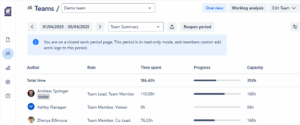
The team overview page contains the main information about spent time, capacity, and progress of individual team members and the whole team. These metrics are calculated according to the period.
You can switch between different views and grouping options, export the statistics, and close and reopen the periods.
Navigation
The team overview is opened automatically when you open a team.
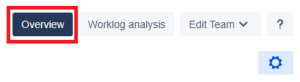
If you are currently on another team page, you can open the overview page from the top right corner of a team.
Views
On the Team overview page, you can switch between different views:
|
View |
Description |
|---|---|
|
Team summary |
Provides general information about the sum of spent time and capacity in the selected period. |
|
Group by author |
Work logs are grouped by team member who logged time. |
|
Group by project |
Work logs are grouped by Jira project where time was logged. |
|
Timesheet |
|

There are multiple time tracking formats, that are available in the top right corner. You can switch between different time tracking units to see the data in hours, minutes, days, and pretty print format.
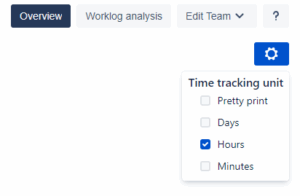
You can export your statistics in CSV and PDF formats by clicking on the export icon.

Please note, that now only group by author export format is available.
Periods
You can switch between different periods by clicking on <> icons

or by selecting a period from the calendar

Please note, that the data is shown according to the period duration, which is set in the configuration. The period duration can be monthly or weekly and each team inherits the period setting that is applied on the overall configuration level.
Read more: