How to book time to multiple days?
Introduction
Timesheet Builder provides multiple options to track time easy and fast. With the Timesheet Builder you can create multiple worklogs two different ways.
If you want to book time spent on an activity that has been repeated several times, but is not repeated consistently, you may be interested in the first solution, which provides the ability to duplicate individual worklog data when creating a worklog.
If your goal is to reserve time spent on an activity that repeats every day for a week or month, you may be interested in the bulk add option.
Please note, that bulk adding is currently available in Data Center only.
How to create multiple worklogs?
“Add another”
Add another checkbox is available when you log time. Add another provides the ability to save seleted team, issue, spent time and comment. Select “Add another“ checkbox to keep this data for the next worklog.
If you click Save, a worklog will be created. The window does not close, and you see a dialog with filled fields. You can apply some changes and click “Save” again. The “Add another” checkbox will be checked after each work log is created.
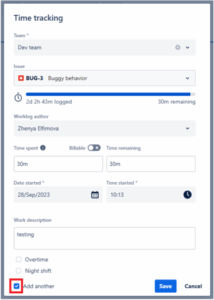
To stop adding work logs, you can click Cancel and all previously created worklogs will be saved.

Or you can create a worklog and uncheck “Add more” before clicking “Save.” In this case, the last working log will be saved and the window will close.

“Multiple days“ in Data Center
Data Center has a second option for bulk logging.
To use this option, toggle the “Multiple days” toggle next to the Date started to ON.
Below the start date you will find an end date selection. To record time on all days between the start and end dates, select the end date.
Below “Time started“ you can find two checkboxes:
-
Exclude holidays
-
Exclude weekends
If you want to exclude holidays from the seleted timeframe, make sure the “Exclude holidays” checkbox is selected.
Holidays are taken from global calendar, which is assigned to you on team level, and from your personal leaves, which are added to a team on Manage availability page in My Timesheets Manage availability
If you would like to log time only to working days according to your team workload calendar, please make sure, that Exclude weekends checkbox is marked. In this case days with zero capacity will be excluded. You can check your workload calendar in Manage availability in My Timesheets Manage availability
Please note, that:
-
It is not possible to select a period longer than 31 days.
-
It is not possible to exclude holidays and weekends if you log time out of any team because holidays and weekends are associated with the team.
-
If any days are within the closed period or outside of your join and leave days in the selected team, those days will be automatically excluded from the time frame and the time will be logged only to the days for which there are no restrictions.
-
If all days are in a closed period or outside of your join and leave days in the selected team, you will be prompted to select a different time period.