How to create and manage teams?
General information
As a team lead, you can create and manage your teams. You can track spent time, create and assign workload schemes, and track the capacity of your team members.
How to create a team?
To create a team please follow the steps below or watch this video:
How to create a team in Timesheet Builder for Jira | Time tracking and worklog analysis | Actonic
Cloud:
-
Please navigate to Teams from Apps in the left-hand menu in Jira
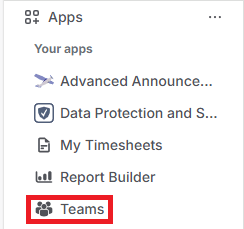
Please make sure that you have permission to view the Teams module in the Timesheet Builder app. If you can’t access it, please talk to your administrator.
-
Click on the “Create Team” button in the top left corner
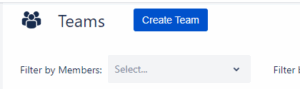
-
Fill in the fields
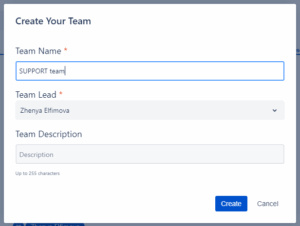
-
Click “Create”
Please note, that if the “Create Team” button is disabled, you might not have Team Managers permissions in the app configuration. Please contact your administrator. See more: Permissions
Data Center:
-
Please open Teams from Timesheet Builder dropdown in the top menu
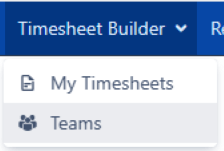
Please make sure that you have permission to view the Teams module in the Timesheet Builder app. If you can’t access it, please talk to your administrator.
-
Click on the “Create Team” button in the top left corner
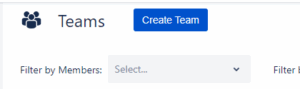
-
Fill in the fields
-
Select Public or Secured worklog visibility
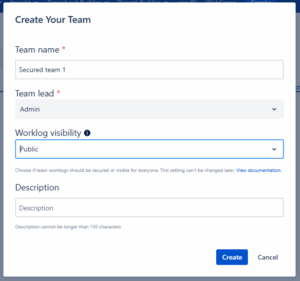
-
-
Click “Create”
Please note, that if the “Create” button is disabled, you might not have Team Managers permissions in the app configuration. Please contact your administrator. See more: Permissions
Please read more about secured and public worklog visibility concept: Create team – advanced description, Secured worklogs
How to manage a team?
Please follow the steps below or watch our video
How to add a new member?
To add a new team participant, please follow the steps below:
-
Navigate to Edit Team> Team Members in the top right corner.
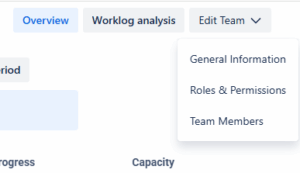
-
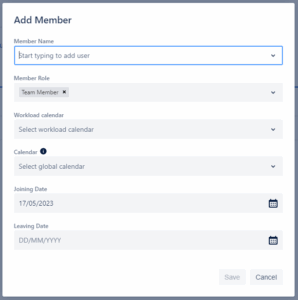
Click “Add Members“.
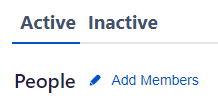
-
Fill in the fields: team member, role, workload calendar.
-
Click “Save”.
Please note, that you can select multiple users in the member name dropdown and search for a user by typing the user name.
Please read more about team member settings
How to create a new role?
As a team lead, you are permitted to create a new role and assign it to any team participant. You might need to create a new role to assign it to a controller, who should track the time of all employees in your company. Or you would like to create a team co-owner role, so your deputy can manage the team during your vacations.
Learn more in our video
There are four permission levels:
|
Permission level |
Description |
Example |
|---|---|---|
|
Work on issues |
|
Consultans |
|
View team members work logs |
|
Timesheet admin |
|
Manage team members work logs |
|
Timesheet admin or Team co-owner with limited permissions |
|
Manage this team |
|
Team co-admin |
To create a new role, please follow the steps below:
-
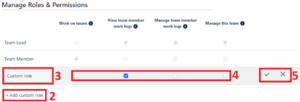
Navigate to Edit team > Roles & Permissions in the top right corner.
-
Click “+Add new role”.
-
Type the role title.
-
Choose permission levels.
-
Click on the check icon to save the role or the cross icon to discard the action.
-
The created role can now be assigned to an existing or to a new team participant.
Please read more about Roles&Permissions