Inline Table Editing: Migration guide. How to move from Data Center to Cloud?
General
Migration can be done quickly and easily. Administrators need to ensure that the Inline Table Editing app is already installed on their cloud instance. Before migration, ensure you are using the earliest version 3.11.0 or higher.
All tables for which overlay functionality is available in Data Center are standard Confluence tables and will appear in the cloud as standard Confluence tables. No additional steps are required to disable overlay functionality or convert it to the Inline Table Editing macro before migration.
If users want to use inline editing in the cloud for tables that used overlay functionality in Data Center, they should wrap the tables to the Inline Table Editing macro after migration.
See the guide on moving tables to macro on this page below.
Tables using the marco function in Data Center will be migrated as macro tables and will still use the inline table editing macro in Cloud. No additional actions or transformations before the migration are required.
Feature parity
Unfortunately, due to Atlassian limitations in the cloud, we do not support the overlay feature there. And only macro functionality is available. Anyway, macro provides more functionality and unlocks the full freedom of inline editing. Macro functionality in Cloud and DC does not have any difference.
If you’re planning a migration from the data center to the cloud, this article might be of interest to you. We’ve compiled everything you need: guidance, functional differences between data center and cloud.
How to migrate?
Migration is quick and easy. Administrators should ensure that the Inline Table Editing app is already installed on their cloud instance before the migration process. Ensure that you are using the latest version of Inline Table Editing (3.11.0 or higher) on your data center instance before migration.
Tables that use the Marco feature in data center will be migrated as macro tables and will continue to use the Inline Table Editing macro in the cloud. No further actions or transformations are required before migration.
All tables with the overlay available in data center are standard Confluence tables and will appear as standard Confluence tables in the cloud. No further steps are required to disable the overlay before migration or to convert it to an Inline Table Editing macro.
If users want to use Inline Editing in the cloud for tables that used the overlay feature in Data Center, the tables can be embedded in an Inline Table Editing macro after migration.
Learn how to convert tables into macro in the cloud:
-
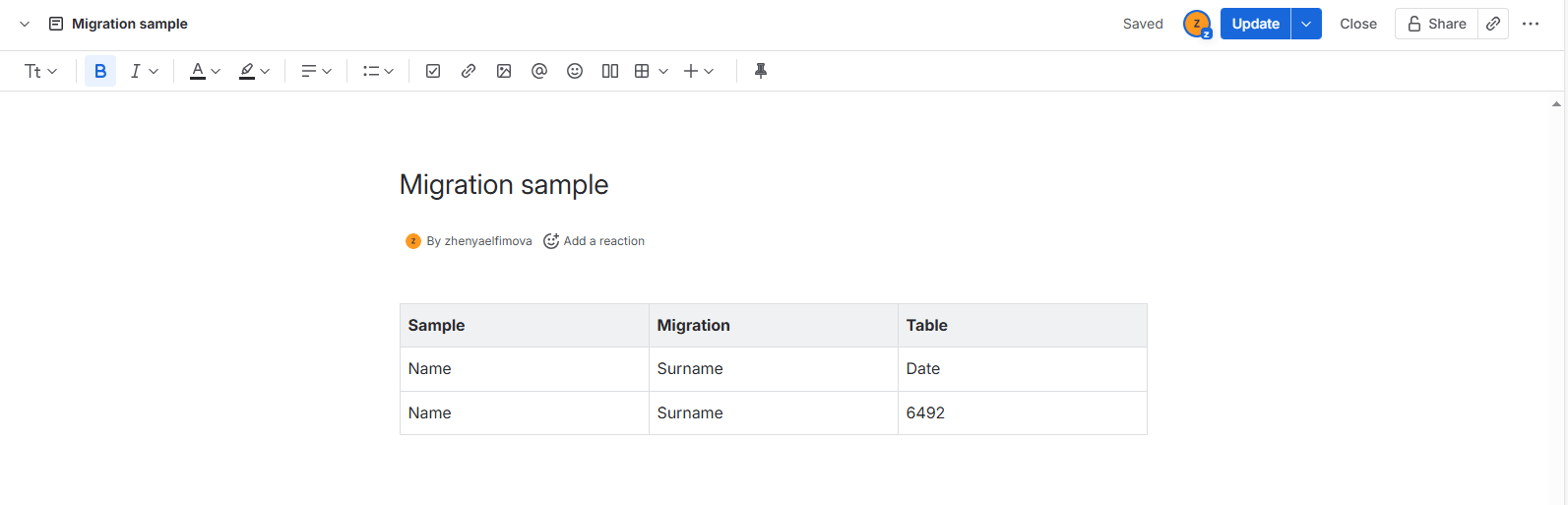
Please open edit mode of the page. You will see your table as a standard Confluence one.
-
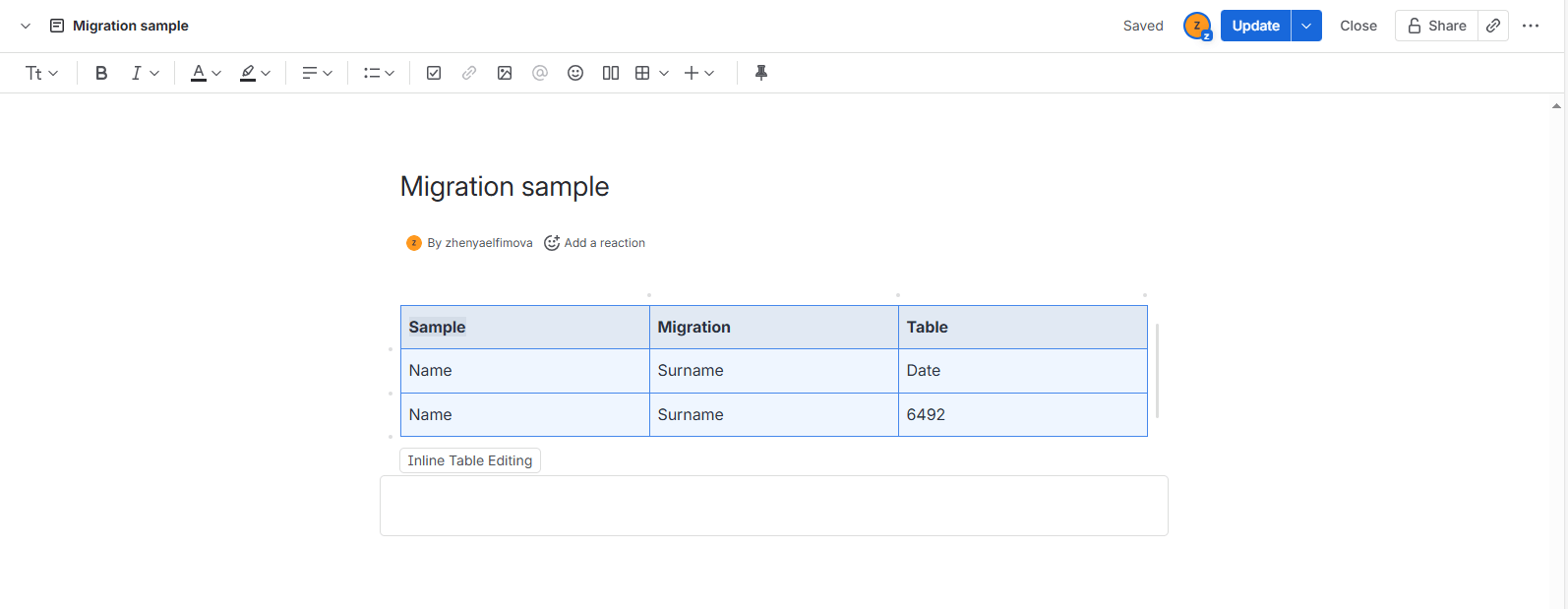
Move your cursor to the place where you would like to put the macro and where you would like to see the table in the future. Click + in the top menu and start typing Inline Table Editing. Select the macro.
-
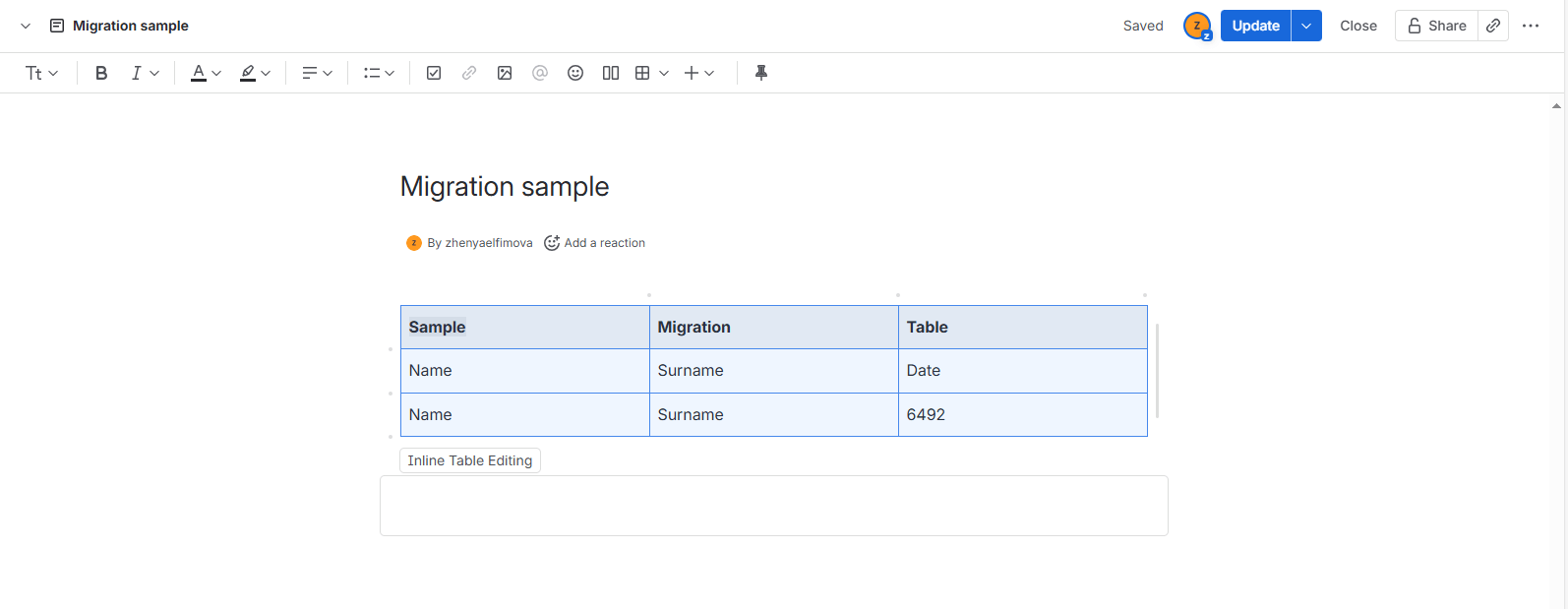
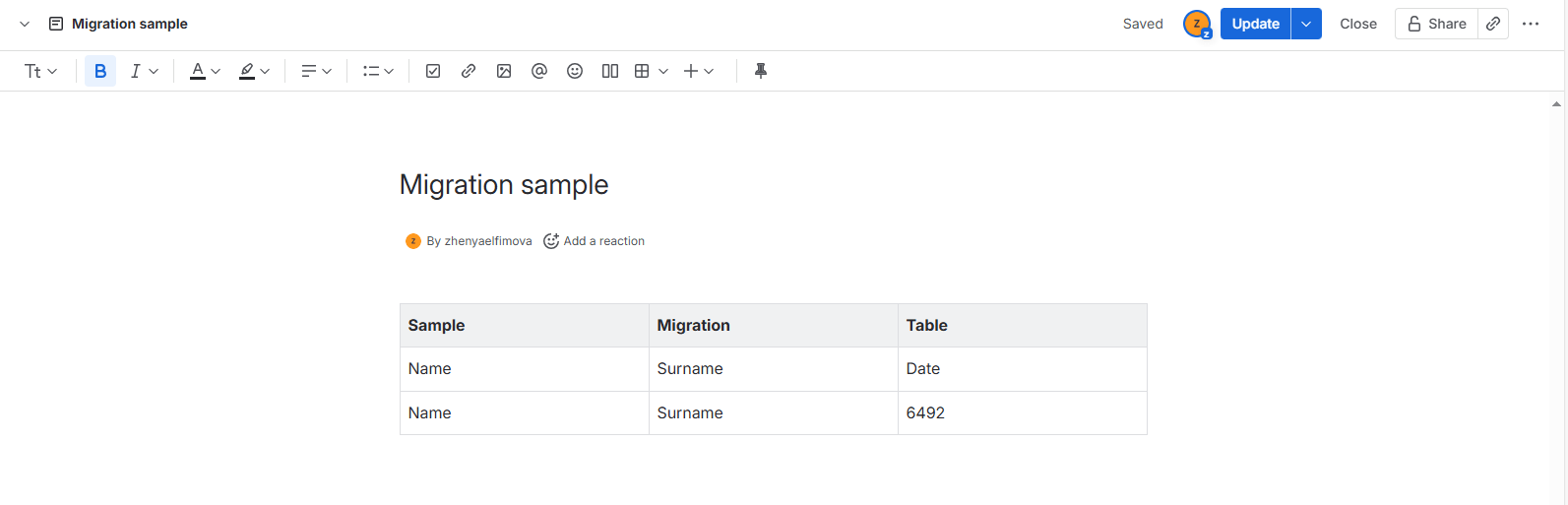
Select the whole table and drag and drop it to the macro or use Ctrl+C option to copy the table, put your cursor insight the macro and use Ctrl+V to insert it. Delete the original table located outside the macro. You can also use the keyboard shortcut Ctrl+X to place the table to macro.
-
Update your page to save the changes.
Feature comparison
Due to Atlassian’s cloud limitations, we unfortunately don’t support the overlay feature there. Only macro functionality is available. However, macros offer more functionality and allow full freedom of inline editing. Macro functionality is no different in the cloud and DC.
|
Funtionality |
Cloud |
Data Center |
|---|---|---|
|
Overlay |
No |
Yes |
|
Macro |
Yes |
Yes |
|
Feature |
||
|---|---|---|
|
Supported platforms |
Available in Confluence Data Center and Confluence Server only Not available in Confluence Cloud |
Available in Confluence Cloud, Confluence Data Center and Confluence Server |
|
Inline editing functionality |
For plain text and rich content (styled text, macros) |
For plain text only. Doesn’t provide rich content editing functionality |
|
Columns sorting |
Yes |
Yes |
|
Rows drag-and-drop |
Yes for single row only |
Yes for single and multiple rows |
|
Columns drag-and-drop |
Yes for single columns only |
Yes for single and multiple columns |
|
Control over applying changes |
No All the changes saved immediately and users can create new page version |
Yes User can control when to save all the made changes |
|
Autofill values |
No |
Yes |
|
Functions and formulas |
No |
Yes |
|
Export to CSV |
No |
Yes |
|
Clipboard, copy & cut |
No |
Yes |
|
Column filter |
No |
Yes |