How to Change the Background Color of a Cell in a Confluence Cloud Table

Need to highlight or color-code cells in your Confluence Cloud tables? Confluence lets you change the background color of individual table cells directly in the editor — no macros or workarounds required. This guide shows you how to do it step by step, and covers a known bug where cell options don’t appear on new pages.
How to Change Table Cell Background Color in Confluence Cloud
Changing the background color of a cell in a Confluence table is done through the Cell options menu. Here’s how:
Step 1: Click Inside the Table Cell
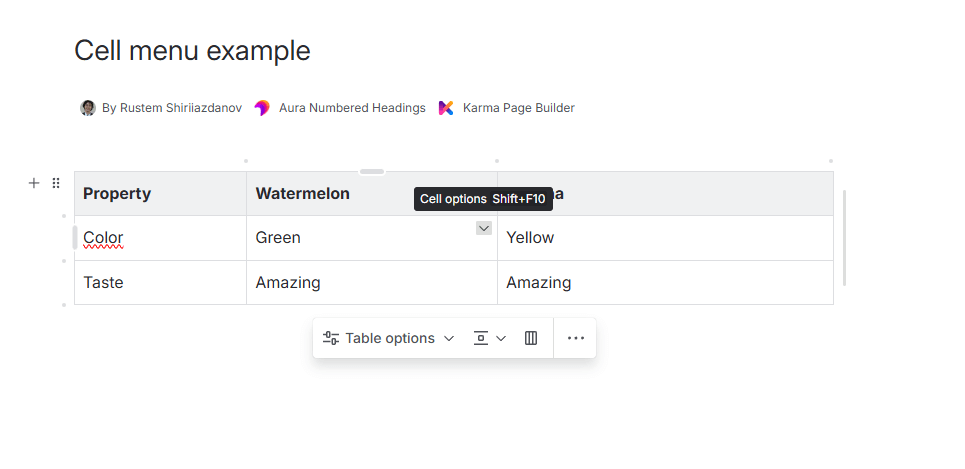
Place your cursor inside the cell you want to color. When the cell is selected, a small dropdown arrow (▾) will appear in the top-right corner of the cell. This is the Cell options control.
Step 2: Open the Cell Options Menu
Click the dropdown arrow — or press Shift+F10 on your keyboard — to open the Cell options menu.
Step 3: Select Background Colour
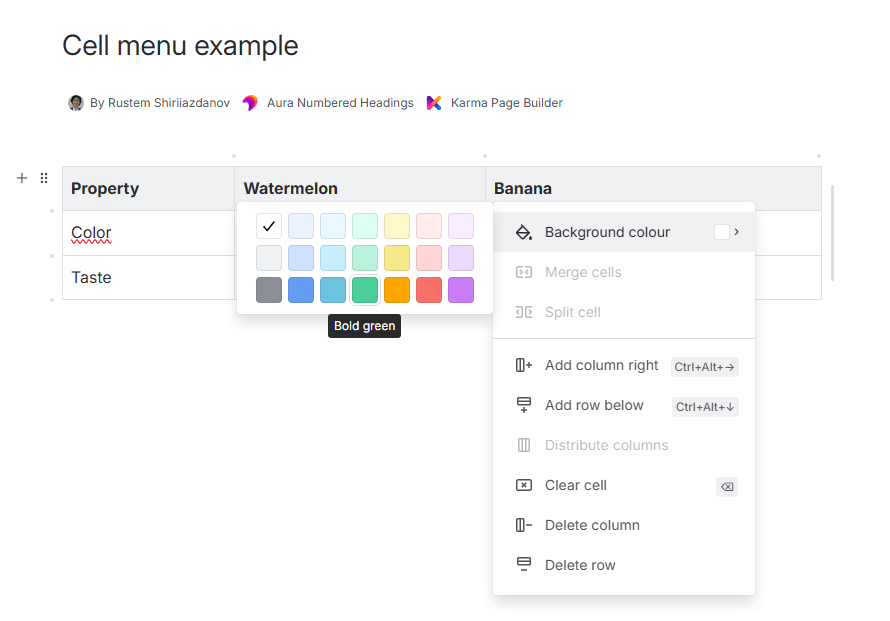
In the Cell options menu, hover over Background colour. A color palette with multiple shades will expand to the left of the menu.
Step 4: Pick a Color
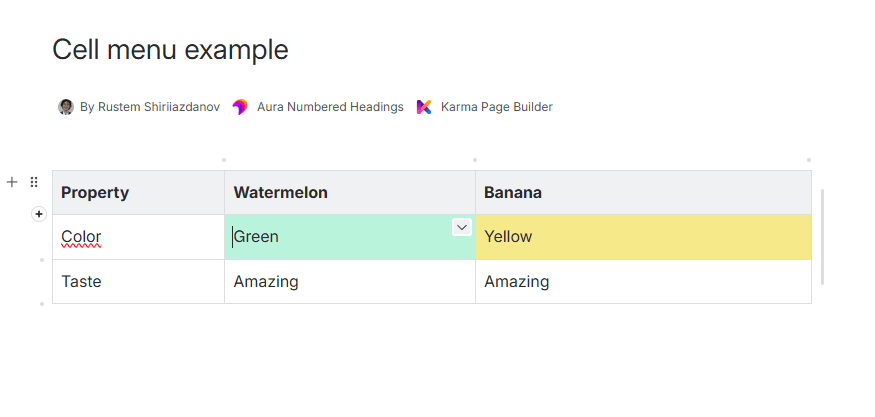
Click the color you want. The cell background color will update immediately. You can repeat this for any cell in the table.
⚠️ Known Bug: Cell Options Not Showing on New Empty Pages (CONFCLOUD-83655)There is a known bug in Confluence Cloud that prevents the cell options dropdown from appearing when a table is the first (and only) element on a newly created page. If you’ve added a table to an empty page and cannot see the dropdown arrow — you’re likely affected by this bug.
Bug tracker: CONFCLOUD-83655
Confluence Table Cell Options Not Appearing — Bug & Workaround
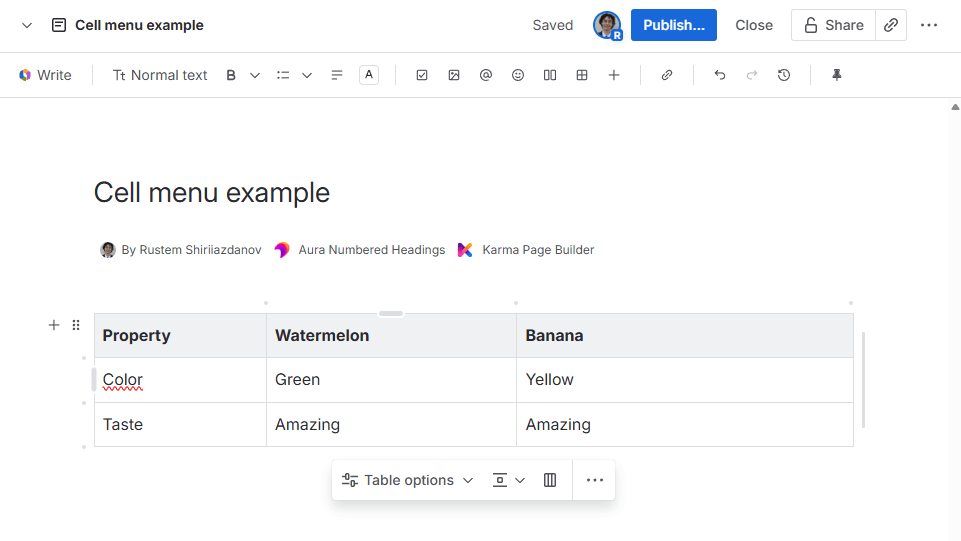
If you’ve placed your cursor inside a table cell but the cell options arrow doesn’t show up, you’re likely experiencing bug CONFCLOUD-83655.
How to Reproduce
- Create a new Confluence page.
- Add a table as the first and only element on the page.
- Click inside any table cell.
Expected: The cell options dropdown arrow (▾) should appear in the top-right corner of the cell.
Actual: No dropdown arrow appears. You cannot change the cell background color or access any cell-level formatting options.
Workaround: How to Fix Cell Options Not Showing
You can get the cell options menu to appear by using one of these quick workarounds:
All Cell Options Available in Confluence Cloud Tables
The Cell options dropdown gives you more than just background color. Here’s everything you can access from it:
- Background colour — set the cell’s background color from a palette of light, medium, and bold shades
- Merge cells — combine multiple selected cells into one
- Split cell — divide a previously merged cell back into individual cells
- Add column right (Ctrl+Alt+→) — insert a new column
- Add row below (Ctrl+Alt+↓) — insert a new row
- Distribute columns — make all columns equal width
- Clear cell — remove all content from the cell
- Delete column / Delete row — remove an entire column or row
Need More from Your Confluence Tables? Try Inline Table Editing
The native Confluence color palette is limited to a fixed set of shades — you can’t enter custom hex codes or use your brand colors. If you need more control over table formatting, sorting, filtering, or formulas, Inline Table Editing for Confluence by Actonic gives you an Excel-like experience right inside Confluence.
With Inline Table Editing you can:
- Use any background color — pick from the palette or enter a custom hex code (e.g., your corporate brand colors)
- Edit cells in view mode — double-click any cell to change its content without switching to edit mode
- Sort and filter tables — click column headers to sort, or apply filters to narrow down data
- Use Excel formulas — SUM, IF, VLOOKUP and 300+ built-in functions work directly in your Confluence tables
- Drag and drop rows — reorder table rows without copy-pasting
→ Try Inline Table Editing free on the Atlassian Marketplace
Want to see it in action? Check out our full tutorial: Excel Style in Confluence: Filter Tables, Organize Columns, Calculate Values.
Summary
Changing the background color of a table cell in Confluence Cloud is straightforward: click the cell, open the Cell options dropdown, hover over Background colour, and pick your color. If the cell options dropdown doesn’t appear on a new empty page, it’s a known bug (CONFCLOUD-83655) — just double-click outside the table and click back in to fix it.
For teams that need more powerful table formatting — including custom colors, sorting, filtering, and formulas — Inline Table Editing brings Excel-like capabilities directly into Confluence. You may also find our guide on Confluence table sorting helpful if you’re working with large data tables.

 Request