Jira Timesheet & Worklog Reports: The Complete 2026 Guide
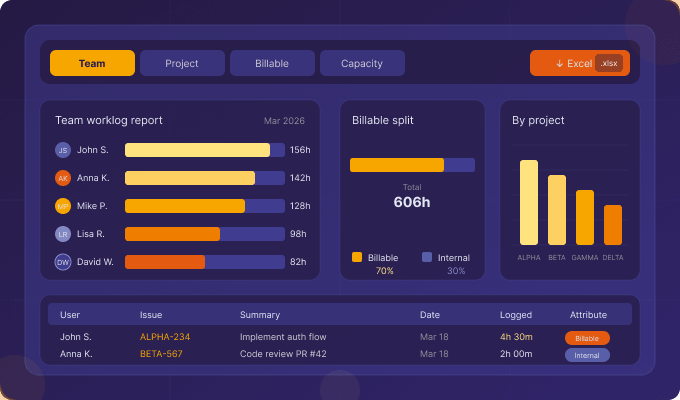
If your team uses Jira to manage work, you’re already sitting on a goldmine of time data. Every “Log work” entry — every Jira worklog — is a data point that can tell you whether your sprints are healthy, your estimates are accurate, and your team has the capacity to take on more. The challenge is turning raw worklogs into meaningful Jira timesheet reports that drive real decisions.
In this guide, we cover everything about Jira worklog reports in 2026: how they work natively, where they fall short, and how Timesheet Builder by Actonic transforms raw worklogs into actionable intelligence.
What is a Jira Worklog?
A Jira worklog is a time entry attached to a specific Jira issue. When a team member clicks “Log work” on an issue, they record:
- Time spent (e.g., 2h 30m)
- Date of work
- An optional work description/comment
- Remaining estimate (optional)
Worklogs are stored at the issue level in Jira’s database and can be queried via JQL (worklogAuthor, worklogDate), the Jira REST API, or reporting apps. They form the raw material for every Jira timesheet and worklog report.
Jira’s Native Worklog Report — What It Can Do
Jira includes a built-in “Time Tracking Report” and “Worklog” gadget for dashboards. These provide a basic summary of time logged per issue within a project. However, native Jira worklog reporting is limited to:
- Single-project scope only
- Issue-level summaries (no user aggregation)
- No date-range filtering beyond project-level
- No export to Excel or CSV
- No team or cross-project view
- No billable vs. non-billable distinction
For teams needing a real Jira timesheet across multiple projects, users, or billing categories, native reports simply don’t cut it.
Types of Jira Timesheet & Worklog Reports You Need
1. Individual Timesheet (My Timesheets)
A personal weekly or monthly view showing all issues a person logged time against. Ideal for self-review, manager sign-off, and payroll submission. Timesheet Builder presents this as a clean calendar + grid view combining all worklogs across every Jira project.
2. Team Timesheet Report
An aggregated view of all team members’ worklogs over a given period. Team leads can filter by person, project, sprint, or worklog attribute. Essential for resource management and capacity reviews.
3. Project Worklog Report
How many hours were logged against a specific Jira project? Which team members contributed, and in what ratio? This report is essential for project profitability analysis and client billing.
4. Billable Hours Report
Filters worklogs tagged as “Billable” and aggregates them per client, project, or ticket. The foundation for accurate invoice generation from Jira data.
5. Capacity Utilisation Report
Compares logged hours against defined weekly capacity per team member. Immediately surfaces overloaded and underutilised team members — the key input for workload balancing.
6. Sprint Worklog Report
Shows time logged per sprint, broken down by user and issue type. Compare original estimates vs. actual time logged to improve future sprint planning.
Timesheet Builder: Advanced Worklog Reports for Jira Cloud
Timesheet Builder by Actonic is the most comprehensive Jira timesheet and worklog reporting app on the Atlassian Marketplace. It goes far beyond what native Jira can provide:
Key Reporting Features
- 📊 Multi-project timesheet: Aggregate worklogs across all Jira projects in one view
- 👤 User-level filtering: Filter timesheet data by individual team member
- 🏷️ Worklog attributes: Custom tags (billable, internal, client name) on every time entry
- 📅 Flexible date ranges: Day, week, month, sprint, or custom date range
- 📤 Excel / CSV export: Export complete timesheets with all attributes in one click
- 🔒 Privacy controls: Define exactly who can see whose worklog data
- 📈 Capacity reports: Logged vs. available hours per team member
- 🔗 Report Builder integration: Feed timesheet data into cross-project dashboards via Report Builder
How to Generate a Team Worklog Report in Timesheet Builder
- Open Timesheet Builder from the Jira top navigation
- Select “Teams” and choose your team
- Go to the “Worklog analysis” tab
- Set your date range (e.g., “This Month” or pick custom dates)
- Apply grouping options: project, worklog author, worklog attribute
- View the aggregated Jira timesheet — hours per user, per issue, per project
- Click “Export” to download the report as Excel (.xlsx)
Exporting Jira Worklogs to Excel: A Step-by-Step Guide
One of the most frequent requests from Jira administrators is: “How do I export Jira worklogs to Excel?” Here’s how to do it with Timesheet Builder:
- Navigate to Timesheet Builder → My Timesheets → Worklog analysis (for personal export) or Teams → [Your Team] → Worklog analysis (for team export)
- Select the desired date range
- Apply any necessarygrouping options (project, worklog author, attribute)
- Click the Export button (top right of the report view)
- Choose Excel (.xlsx) or CSV format
- Your download starts immediately — ready for payroll, invoicing, or audit
The exported file includes: user name, issue key, issue summary, project, date, time logged, worklog comment, and all selected custom worklog attributes.
Jira Timesheet Best Practices for Accurate Worklog Reports
- Mandate daily logging: Weekly reporting is less accurate — time perception drifts significantly after 24 hours
- Use worklog attributes consistently: Define a controlled vocabulary for billable categories before project kickoff
- Review timesheets weekly: Team leads should review the team timesheet every Friday to catch missing entries
- Set worklog reminders: Configure Jira notifications to remind users who haven’t logged that week
- Compare to estimates: Always analyse logged time vs. original story point estimates in retrospectives
Frequently Asked Questions: Jira Worklog Reports
Can Jira generate timesheet reports across multiple projects?
Native Jira cannot. You need a dedicated app like Timesheet Builder, which aggregates worklogs from all Jira projects into one unified timesheet view.
How do I see all worklogs for a specific user in Jira?
In native Jira, you can use JQL: worklogAuthor = "username" AND worklogDate >= "2026-01-01" — but you only see issue-level results, not an aggregated total. Timesheet Builder provides a dedicated per-user view with totals, filtering, and export.
Is there a free Jira timesheet tool?
Timesheet Builder offers a free 30-day trial. After that, pricing is per user/month on the Atlassian Marketplace — typically far less than the cost of inaccurate billing or manual timesheet processing.
Turn Your Jira Worklogs into a Reporting Powerhouse
Your team’s time data is already in Jira — the question is whether you’re making the most of it. With Timesheet Builder by Actonic, you unlock professional-grade Jira timesheet and worklog reports that drive better decisions, faster billing, and healthier teams. Start your free trial today.
Timesheet Builder: Resource Planning and Teams Management
Die weltweit einzige Lösung, in Jira Arbeitszeit zu erfassen und dabei Datenschutz einzuhalten. Mit Multi-Projekt-Timesheets, Team-Worklog-Reports und Excel-Export — für vollständige Transparenz über Ihre Projektzeiten.
Report Builder: Jira Reports and Data Analysis
The best agile Jira reporting tool: Combine worklog data with sprint, project, and team metrics. Create flexible reports that support your decisions with real data.
All our apps on the Atlassian Marketplace:


 Request