Ask Claude, Cursor or Codex for a Jira report: the Report Builder MCP server
The problem: your AI knows code, not your Jira reports
Many teams already spend the day in an AI client: Claude for writing and analysis, Cursor or Codex for code. But when someone asks “how many hours did the team log on Nova Commerce last month?” or “which bugs are still open, by priority?”, the answer lives in Jira. So you leave the chat, open Jira, find the right report or build one, pick fields, set filters, and come back.
The AI could do the building, if it could reach your reporting tool safely and see only what you are allowed to see.
The solution: Report Builder has its own MCP server
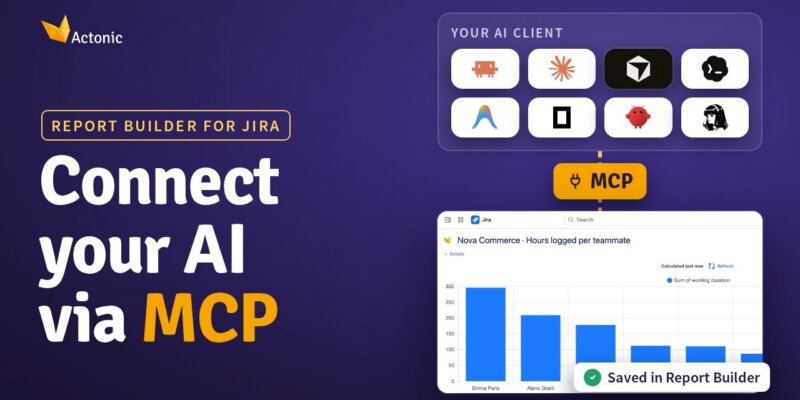
Report Builder now ships an MCP server. MCP (Model Context Protocol) is the open standard that lets AI clients use outside tools. Connect it once, and you can ask Claude, Cursor, Codex or any other MCP client for a Jira report in plain words. The AI finds the right Jira fields, builds the report and saves it in Report Builder, where it runs on live Jira data like any other report.
Setup takes about a minute and has two parts: a personal token for your AI client and a Jira connection that lets Report Builder read Jira as you.
Watch: from setup to a saved report
The video walks through the whole flow: issuing the token, adding it to an AI client, connecting Jira and asking for a first report.
How it works
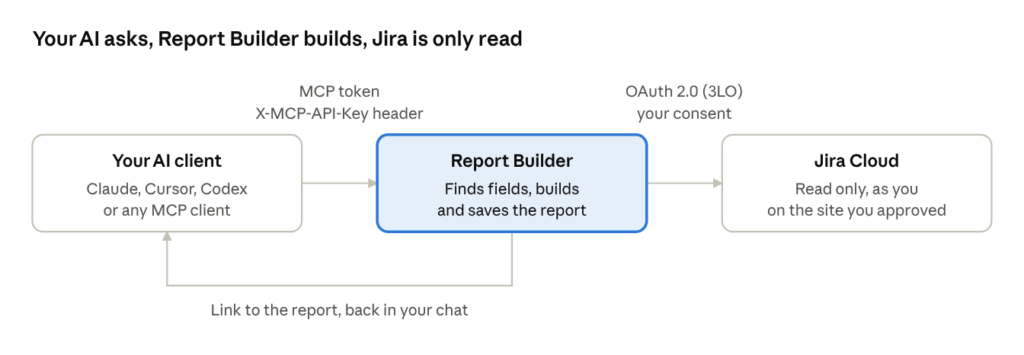
There are two links. Your AI client talks to Report Builder with your personal MCP token. Report Builder reads Jira with your approval, given once in an Atlassian consent window. The report itself is built and saved in Report Builder, and the AI gives you a link to open it.
Set it up in about a minute
You need Report Builder on your Jira Cloud site with an active license, and an AI client that supports MCP. If your client starts the connection with npx (Claude Desktop does), Node.js must be installed on your computer.
1. Open Configure AI MCP. In Jira, open Report Builder, click the menu icon in the top-left corner and choose Configure AI MCP.
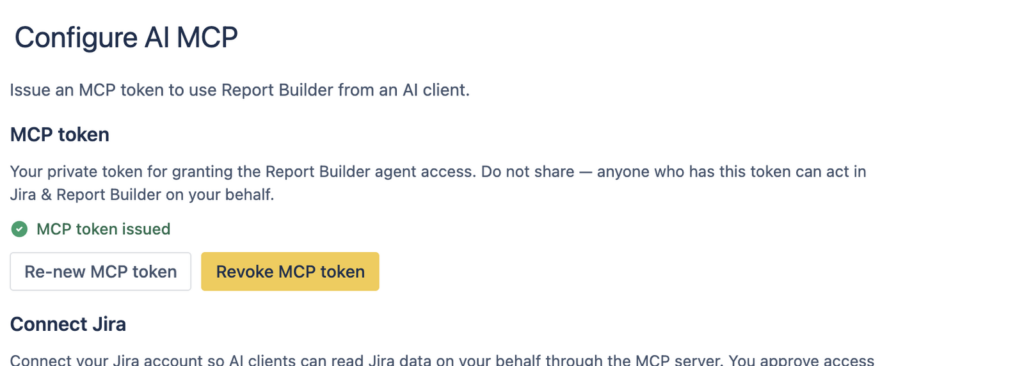
2. Issue your MCP token. Click Issue MCP token and copy it right away. It is shown only once and is not stored. Lost it? Click Re-new MCP token for a fresh one.
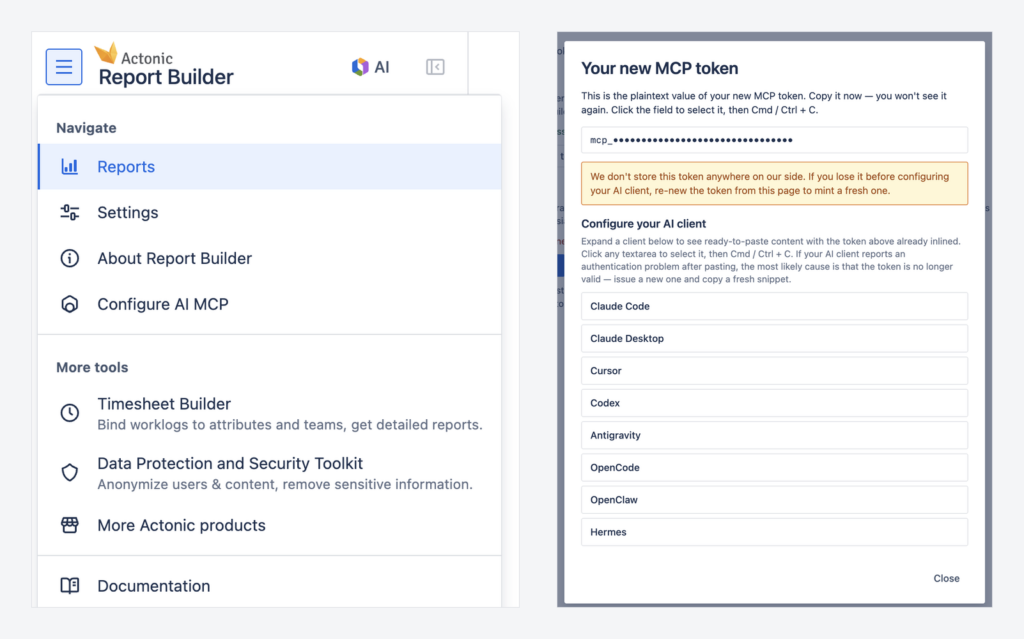
3. Pick your AI client. The same dialog has ready-made snippets for Claude Code, Claude Desktop, Cursor, Codex, Antigravity, OpenCode, OpenClaw and Hermes, with your token already filled in. Any other MCP client works with the same server address and X-MCP-API-Key header.
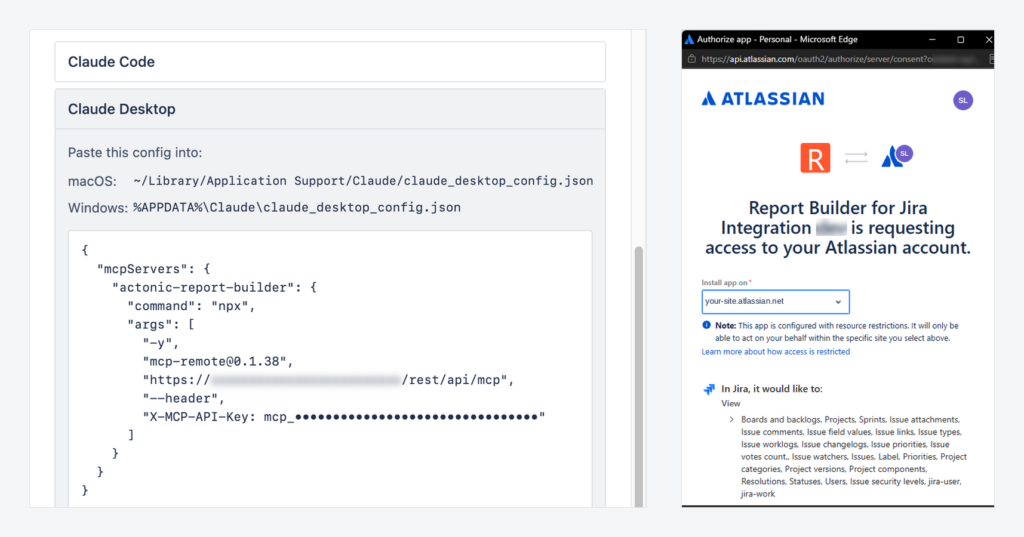
4. Paste the snippet into your client’s MCP configuration, save it and restart the client. In Claude Desktop that is claude_desktop_config.json, under mcpServers.
5. Connect Jira. Click Connect Jira, choose your Jira site in the Atlassian consent window, review the access and accept. The status changes to Jira connected.
That’s it. The page now shows both parts done: MCP token issued and Jira connected. You can renew or revoke the token here at any time.
Ask for a report in plain words
Open your AI client and describe what you want to see, for example:
A bar chart of hours logged per teammate in Nova Commerce
The AI first checks whether a matching report already exists. If not, it builds a draft from a gallery template or from scratch. Open the draft from the link in the chat or from the Your report is ready notification in Report Builder. The report is not drawn in your chat; it lives in Report Builder.
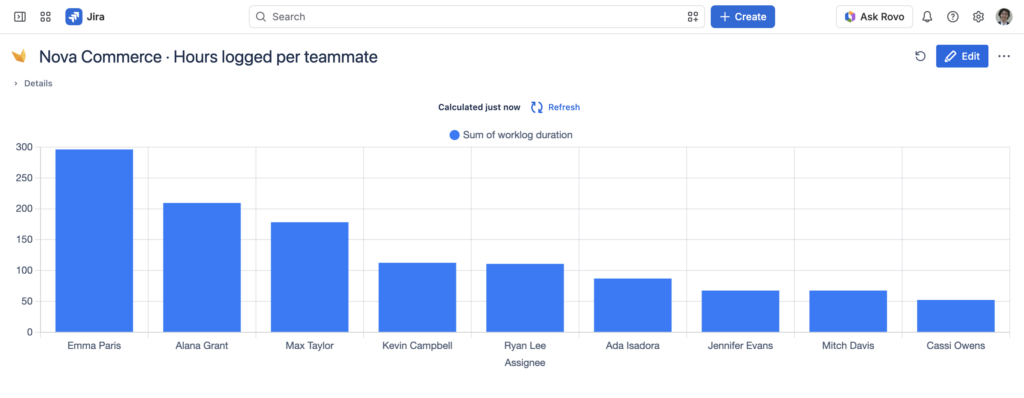
Want changes? Stay in the same chat: “make it a pie chart”, “only last month”. The AI updates the same draft. If something is unclear, it asks one question or tells you what it assumed. When you are happy, ask it to save the report or click Add to My Reports. Drafts expire after 24 hours, so save the ones you want to keep.
What you can ask for
| Task | Example request |
|---|---|
| Find saved reports | “Do we already have a workload report for Nova Commerce?” |
| Build a Universal Visual Builder report: numbers, bar, pie and doughnut charts, pivot tables, issue lists | “Open bugs by priority and assignee as a pivot table” |
| Start from a gallery template: timesheets, workload, status distribution, calendar reports, Mermaid diagrams and more | “A Gantt chart of the epics in Nova Commerce” |
| Build a custom scripted report (needs the Scripted Reports Creator permission) | “A one-page summary with total hours, finished issues and a weekly hours chart” |
| Change an existing report, keeping its name and permissions | “Sort my Workload report by remaining estimate” |
| Save a draft | “Save it as ‘Nova — hours per teammate'” |
When you ask to change a saved report, the AI tells you whether it will update that report (if you can edit it) or create a copy. It makes a copy only when you ask for one.
Is it safe to let an AI into Jira?
This is usually the first question, so here is how it works:
- Read-only for Jira. Through Report Builder, your AI only reads Jira. It never creates, edits or deletes issues, worklogs or anything else. The only things it writes are Report Builder drafts and reports.
- The AI acts as you. Jira access uses Atlassian’s standard OAuth 2.0 (3LO) authorization. The AI sees only what your Jira account can see, and only on the site you approved.
- Your token is not stored. It is shown once; keep it only in your AI client’s configuration and treat it like a password.
- You stay in control. Re-new or revoke the token, or disconnect Jira, on the Configure AI MCP page at any time. You can also remove the app at id.atlassian.com, and site admins see it under Connected apps in Atlassian Administration.
- No data outside Atlassian. Report Builder itself stores no data outside Atlassian.
Try it
If you already use Report Builder, open Configure AI MCP and issue your token; your first AI-built report is a minute away. New to Report Builder? Install it from the Atlassian Marketplace and start a free trial.
- The full step-by-step guide, including troubleshooting: Use Report Builder from your AI client (MCP).
- Prefer to stay inside Jira, with no token or client setup? The same report building is available in Rovo: Jira reports by just asking: the Report Builder assistant in Rovo.
- Need a report your AI cannot build yet? We build custom reports for free for Report Builder customers: request a custom report.

 Request