Attachment Scanner in Jira: How to Find PII and Passwords Your DLP Has Never Seen
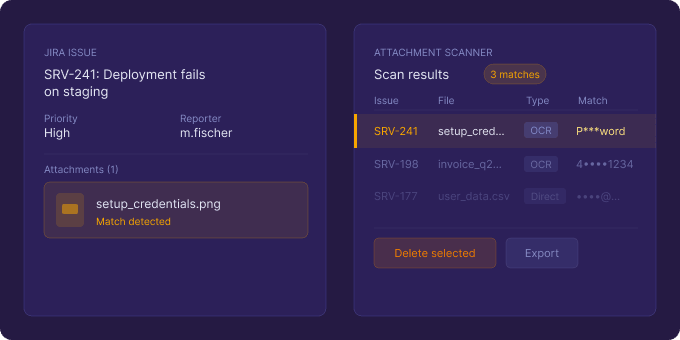
The data subject request lands in your inbox. Thirty days to respond. You know the answer involves Jira — tickets, comments, attachments going back years. The comments you can search. The fields you can audit. But the attachments? Thousands of uploaded files: screenshots, scanned invoices, exported spreadsheets, photos of whiteboards. You have no reliable way to tell a regulator what personal data is in any of them.
That is not a process failure. It is a structural gap that most Jira security tooling simply does not close.
Why Jira’s Native Search Leaves Attachments in the Dark
Jira’s search engine — including JQL — indexes fields and comments. It does not read the contents of attached files. This is by design: Jira is a work-management tool, not a document store with full-text indexing. Permission schemes control who can open an issue; they say nothing about what is inside the files attached to it.
The same limitation applies to most data-loss prevention (DLP) tools that integrate with Jira. They inspect text: field values, summaries, descriptions. Some read the text layer of a PDF or the body of a Word document. But the moment sensitive content lands inside an image or a scanned form — a screenshot of a password, an ID scan uploaded to a service-desk ticket, a spreadsheet photographed on a phone — text-based scanning stops working. The file is there. The content is invisible.
The Blind Spot Is Exactly Where the Riskiest Content Hides
This is not a theoretical edge case. Consider how attachments actually enter Jira:
- A developer screenshots an error message that includes an API key or database password and attaches it to a bug ticket.
- A customer uploads a scanned copy of their ID or a bank statement to a Jira Service Management request.
- A finance team member attaches a photographed invoice containing payment-card numbers to a procurement issue.
- A QA engineer pastes a screenshot of a form prefilled with real customer data into a test ticket.
None of these trigger a DLP alert. None of them are findable by JQL. They sit in your Jira instance, fully accessible to anyone with issue-level permissions, and they accumulate quietly for years.
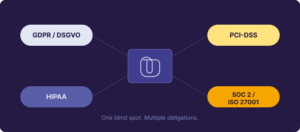
For organisations subject to GDPR, PCI-DSS, HIPAA, or SOC 2, that accumulation is a compliance liability. For security teams, it is a credential-leak waiting to surface in an audit or an incident.
What an Attachment Scanner in Jira Actually Needs to Do
Closing this gap requires more than keyword search over text files. A meaningful attachment scanner in Jira needs to:
- Read images and scanned PDFs using optical character recognition (OCR) — not just extract a text layer that may not exist.
- Scope precisely via JQL, so you can target a specific project, queue, date range, or team rather than burning through every file in the instance.
- Show results in context — the issue, the file, the matched text, and the surrounding snippet — so an admin can make a real remediation decision rather than hunting through raw hits.
- Audit every action, especially deletions, so there is a record your compliance team can stand behind.
- Process data safely, without shipping attachment contents to a public AI service or storing file binaries on a third-party server.
How Attachment Scanner for Jira Works
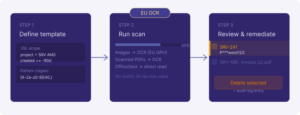
Attachment Scanner – OCR, PII & Password Detection for Jira by Actonic is built around a straightforward workflow: define a template, run a scan, review matches, remediate.
Templates are reusable scan definitions. You set a name, a JQL scope (which issues to cover), a search pattern (plain text with wildcards, or a full regex), and a scan mode. Live validation catches JQL and pattern errors before the scan starts, so you are not burning credits on a misconfigured run.
Two scan modes let you balance coverage against cost. Full scan reads everything: images, scanned PDFs, text-layer PDFs, Office documents, CSV, and plain-text files. Images and scanned PDF pages each consume one OCR credit. Document-only scan reads Office and text files only — no images, no PDFs — and uses zero credits. If you need to audit a large project quickly and your primary concern is credential leakage in text files, document-only is a fast, free starting point; you can follow up with a full scan on the subsets that warrant it.
Results come back as a match table: issue key (clickable through to Jira), attachment name, extraction type (OCR or direct), the matched text, and the surrounding context. Skipped files and warnings are shown, not silently dropped. A mode banner on the results card prevents a low match count from being misread as “nothing found” when images were excluded.
Remediation is always explicit. Bulk-select the matches you want to act on, confirm deletion, and every action is written to an audit log. There is no automatic deletion — a deliberate design choice that matters when a regulator asks how and when a file was removed.
Processing That EU and Regulated-Sector Teams Can Stand Behind
OCR is the capability that makes this app worth having — and OCR requires sending image data somewhere for processing. Where is a legitimate concern for any team operating under GDPR or sector-specific data-residency rules.
Attachment Scanner runs OCR on dedicated EU/EEA GPU infrastructure managed by Actonic. No attachment binary is sent to OpenAI, Google, Anthropic, or any public AI service. Attachment contents are processed in memory and discarded immediately after text extraction; only the matched snippet and its short context are stored. Templates, results, and audit logs live in Atlassian’s own Forge storage, isolated per site. Uninstalling the app removes all stored data automatically.
This does not make the app a compliance guarantee on its own — no tool is. But it is a technically auditable control, with a privacy model you can actually explain to a DPO or an external auditor.
Who It Is For
Data protection officers and compliance leads who need a repeatable, auditable way to answer “what personal data do we hold in Jira attachments?” — especially when a GDPR access or deletion request arrives and screenshots are part of the answer.
Security engineers and AppSec teams who have found (or fear finding) credentials, API keys, or tokens in Jira tickets. Secret scanners work on code repositories; they do not OCR screenshots. This does.
Jira and JSM administrators preparing for an audit, running a data minimisation exercise, or responding to “what is in all those attachments?” from a DPO or CISO. JQL scoping means you can target one project, one queue, or one time window at a time.
What It Does Not Do — Worth Knowing Before You Evaluate
Attachment Scanner is an on-demand tool. It does not monitor attachments continuously or block a file at upload time. If your primary requirement is write-time prevention, that is a different product category.
It also does not ship a library of pre-built detector rules. You define the patterns — either simple wildcard text or regex. That gives you precision and control; it means you need to know what you are looking for. Most teams start with a handful of patterns for the data types their compliance programme covers (email addresses, national ID formats, card numbers, common password patterns) and expand from there.
Finally, it is Jira Cloud only. Data Center and Confluence are not supported today.
Start With a Scan on Your Own Data
The fastest way to understand whether this gap exists in your Jira instance is to run a scan on a real project and see what comes back. Attachment Scanner is available with a 30-day free trial on the Atlassian Marketplace — no commitment, no credit card required beyond the standard Marketplace billing flow.
If you would rather walk through a live example with a member of the Actonic team, you can book a free 30-minute data-compliance session with Nikoloz Surmanidze, the product owner. It is not a sales call — it is a working session on your actual compliance questions.

 Request