Finding passwords and credentials hidden in your Jira attachments
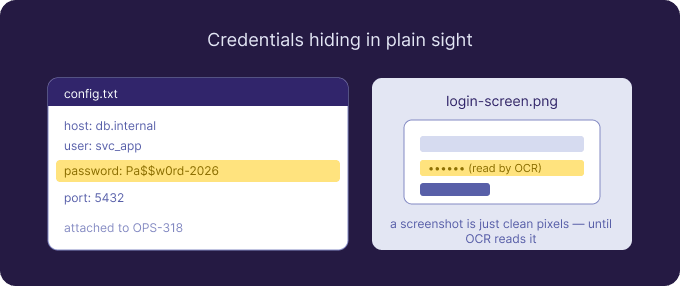
Credentials end up in Jira far more often than anyone likes to admit. A developer pastes a connection string into a comment while debugging. A support agent attaches a screenshot of a login screen “for context.” An ops engineer drops a config file onto a ticket so a colleague can reproduce an issue. None of it is malicious, and almost none of it ever gets cleaned up. Over a few years, your issue tracker quietly becomes one of the largest unmanaged credential stores in the company — and the riskiest entries are the ones sitting inside attachments, where your usual tools can’t read them.
If you’ve searched for a way to scan Jira attachments for passwords, you’ve probably discovered the same thing most teams do: Jira itself won’t help, and your antivirus won’t either. Here’s why the gap exists and how to close it.
How passwords actually end up in Jira
It’s worth being specific, because the scenarios are mundane and that’s exactly why they slip through. A QA engineer files a bug and pastes a screenshot of the app’s admin panel — with a service password visible in a form field. A customer raises a support ticket and attaches a screenshot of their email client showing an app-specific password. Someone exports a .env file or a YAML config and attaches it to an infrastructure ticket. A spreadsheet of test accounts, complete with plaintext passwords, gets dropped into a sprint task and forgotten.
Every one of these is a working credential, and every one is now stored in a system that dozens or hundreds of people can reach. The credential outlives the ticket, the sprint, and often the person who uploaded it.
Why your existing controls don’t catch them
The instinct is to assume something already covers this. Usually nothing does. Jira search and JQL index issue fields and comments — not the contents of attached files — so a password inside an attached image or document is invisible to any query you run. Permission schemes control who can open an issue, not what a file reveals once it’s opened. And the antivirus or malware scanning you may already have answers a different question entirely: is this file dangerous? A screenshot of a login screen is a perfectly clean PNG, so it passes every virus scan — the danger is the credential it contains, not the file.
Even most data-loss-prevention tools stop at text in fields and comments. The moment a credential lands inside a screenshot or a scanned document, text-based scanning goes blind. That’s the single biggest blind spot, because screenshots are exactly where people paste the things they shouldn’t type out.
Reading inside the files — including images
This is where Attachment Scanner for Jira fits. It’s not an antivirus and it doesn’t scan for malware; it reads the content of your attachments and reports where your patterns match. Crucially, it uses built-in OCR, so a password sitting inside a screenshot or a scanned PDF is treated like any other searchable text. You define what to look for, point it at a scope with JQL, and it opens every supported file — images, scanned and text-layer PDFs, Office documents, CSV, and plain text.
For credentials, your patterns can be as simple or as precise as you like. Start with literal keywords — password, passwd, pwd, secret, credentials — using simple text with wildcards. Then add regular expressions for the structured cases: a regex for connection strings (for example, the ://user:password@host shape), for Authorization: Bearer headers, or for the specific token formats your stack uses. Simple patterns catch the obvious leaks; regex catches the ones that follow a predictable structure.
Two scan modes, and what they cost
There are two ways to run a scan. A full scan reads everything, including images and all PDF types, using OCR where it’s needed — this is the mode that catches passwords in screenshots. A document-only scan looks at Office and text files alone, skips every image and PDF, uses no OCR credits, and never contacts the OCR service at all. If you only care about credentials in config files and exported spreadsheets, document-only is fast and free; if you need to catch the screenshot leaks, you’ll want a full scan. OCR work is metered in credits (one per image, one per OCR’d PDF page), so scoping with JQL keeps both your runtime and your credit use predictable.
Telling a real leak from a false positive
A keyword like “password” will inevitably match documentation, UI copy, and the word used in passing. That’s fine — the results are built for triage. Every match comes back in a dashboard with the issue key (click straight through to Jira), the file name, whether the text was read by OCR or extracted directly, the matched text, and the surrounding context. That context is what lets you separate “here is our password policy” from “here is an actual password,” in seconds rather than by opening every file. The statistics view also rolls matches up across scans — match rates, your most-matched patterns, and the projects and work items with the most hits — so you can see where credentials concentrate.
Remediation — and the step the tool can’t do for you
When you confirm a genuine leak, you can bulk-select the matches and delete those attachments directly from the results screen. Deletion is always an explicit, admin-confirmed action and is written to an audit log; nothing is ever removed automatically. One honest caveat worth stating plainly: deleting the attachment removes the exposure in Jira, but it does not rotate the credential. If a password or key has been sitting in a ticket, treat it as compromised — rotate it, then delete the file. The app handles the discovery and the cleanup inside Jira; the rotation is a process step on your side.
Privacy, limits, and getting started
For security and EU-based teams, how the scanning happens matters. OCR runs on dedicated GPU hardware in the EU/EEA, managed by Actonic — nothing is sent to a public AI service such as OpenAI, Google, or Anthropic. Attachment binaries are processed in memory and discarded immediately; only the matched snippets, with a little context, are stored, and they live in Atlassian’s own Forge storage, isolated per site. A couple of limits to set expectations: scanning is on demand today, not continuous real-time monitoring, and the app is Jira Cloud only, with no Data Center or Confluence support yet. You define the detection patterns rather than picking from a shipped rule library — which means you control precisely what counts as a credential.
If credentials in tickets are a known risk for your team, the fastest way to size the problem is to look. You can try Attachment Scanner for Jira free for 30 days from the Atlassian Marketplace, with monthly evaluation credits to test OCR on your own attachments.

 Request