Why OCR is the missing piece: finding PII inside Jira screenshots
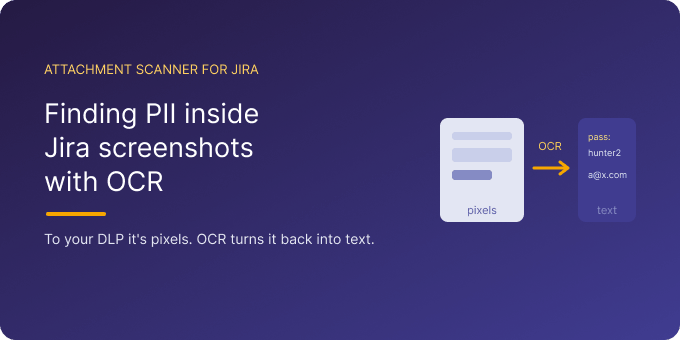
Screenshots are the most natural thing in the world to attach to a ticket. They show the bug, the error, the configuration, the conversation — instantly and without explanation. They’re also where the most dangerous data quietly lands, because a screenshot can capture a password field, a customer’s profile, a payment page, or an inbox full of email addresses, all in a single image. And to almost every security tool you own, that image is just pixels. If you’ve ever wondered how to find PII inside Jira screenshots, the honest answer is that without OCR, you can’t — and that’s the gap this article is about.
The screenshot is the blind spot
Most data-protection effort goes into the parts of Jira you can read: fields, comments, descriptions, permissions. Screenshots sit outside all of it. Jira’s search and JQL index text, not the contents of an image, so a credential or a customer record visible in a screenshot is completely invisible to any query. Permission schemes govern who can open the issue, not what the attached image reveals. Even malware scanning, which does inspect images, is asking “is this file dangerous?” — not “does this picture show a password?” The image passes every check and keeps its secret.
Why text-based DLP can’t help
Data-loss-prevention tools are built around reading text — in fields, in comments, in documents that contain a text layer. A screenshot contains none. There is no text to extract, only an arrangement of pixels that happens to look like text to a human. So the entire category of text-based scanning, however sophisticated, goes blind the moment sensitive information is rendered into an image. That’s not a configuration problem you can fix with better rules; it’s a fundamental limitation of reading text that isn’t there.
OCR turns pixels back into text
Optical character recognition is the piece that closes the gap. OCR reads the characters out of an image and reconstructs them as text a machine can search. Once a screenshot has been through OCR, “password: hunter2” in a PNG is just as findable as the same words typed into a comment. This is the core of what Attachment Scanner for Jira does: it runs OCR on images and scanned PDFs using an AI vision model, then matches your patterns — simple text or regex — against the recovered text. A password in a login screenshot, an email address in an inbox capture, a card number on a screenshot of a checkout page: all become detectable, where before they were untouchable.
How it works in practice
You define what to look for and a JQL scope, then run a full scan — the mode that reads images and all PDF types — and the app OCRs each image before matching. Because OCR work is metered (one credit per image, one per OCR’d PDF page), scoping with JQL to the projects and dates that matter keeps cost and runtime in check. Each result tells you exactly how the text was found: the extraction type field marks whether a match came from OCR or from direct extraction, so you can see at a glance that a finding came out of an image rather than a text file — which is often the most security-relevant case.
The privacy question OCR raises — and how it’s answered
There’s a fair objection to OCR: if something is reading your most sensitive screenshots, where does that processing happen? Sending images full of credentials and PII to a public AI service would simply relocate the risk. Attachment Scanner is built to avoid that. OCR runs on dedicated EU/EEA GPU hardware managed by Actonic — nothing is sent to OpenAI, Google, or Anthropic. The image binaries are processed in memory and discarded immediately after extraction; only the matched snippets, with a little context, are stored, in Atlassian’s Forge storage, isolated per site. The tool reads your screenshots without becoming a new place your screenshots are kept.
Limits and the takeaway
OCR is powerful but not magic: very low-resolution, heavily compressed, or stylised images can defeat any OCR engine, so a clean capture reads more reliably than a photo of a screen. And scanning is on-demand rather than continuous, on Jira Cloud only for now. Those caveats aside, the central point stands: the highest-risk content in Jira tends to live in screenshots, and OCR is the only way to see it. If your current “attachment coverage” can’t read images, it has a hole exactly where the risk concentrates. You can try Attachment Scanner for Jira free for 30 days from the Atlassian Marketplace and test OCR on your own screenshots with the monthly evaluation credits.

 Request